From issue to merge
Start from a GitHub issue, open a pull request, follow the checks and merge, all from the app.
Compagnion uses the GitHub CLI for everything on GitHub, so sign it in first with gh auth login.
Start from an issue
In Create, open the GitHub menu at the top right and pick an issue under Issues; search works like on GitHub (label:bug). Or just mention it in your description: the issue URL, #42 or owner/repo#42.
The workspace is named after the issue and the agent gets the issue first: title, labels, description and comments, freshly fetched. In the chat it shows as a card with the issue and Open on GitHub.
The Backlog column of the dashboard lists your open issues that don't have a workspace yet; Start opens Create with the issue picked.
Make a pull request, step by step
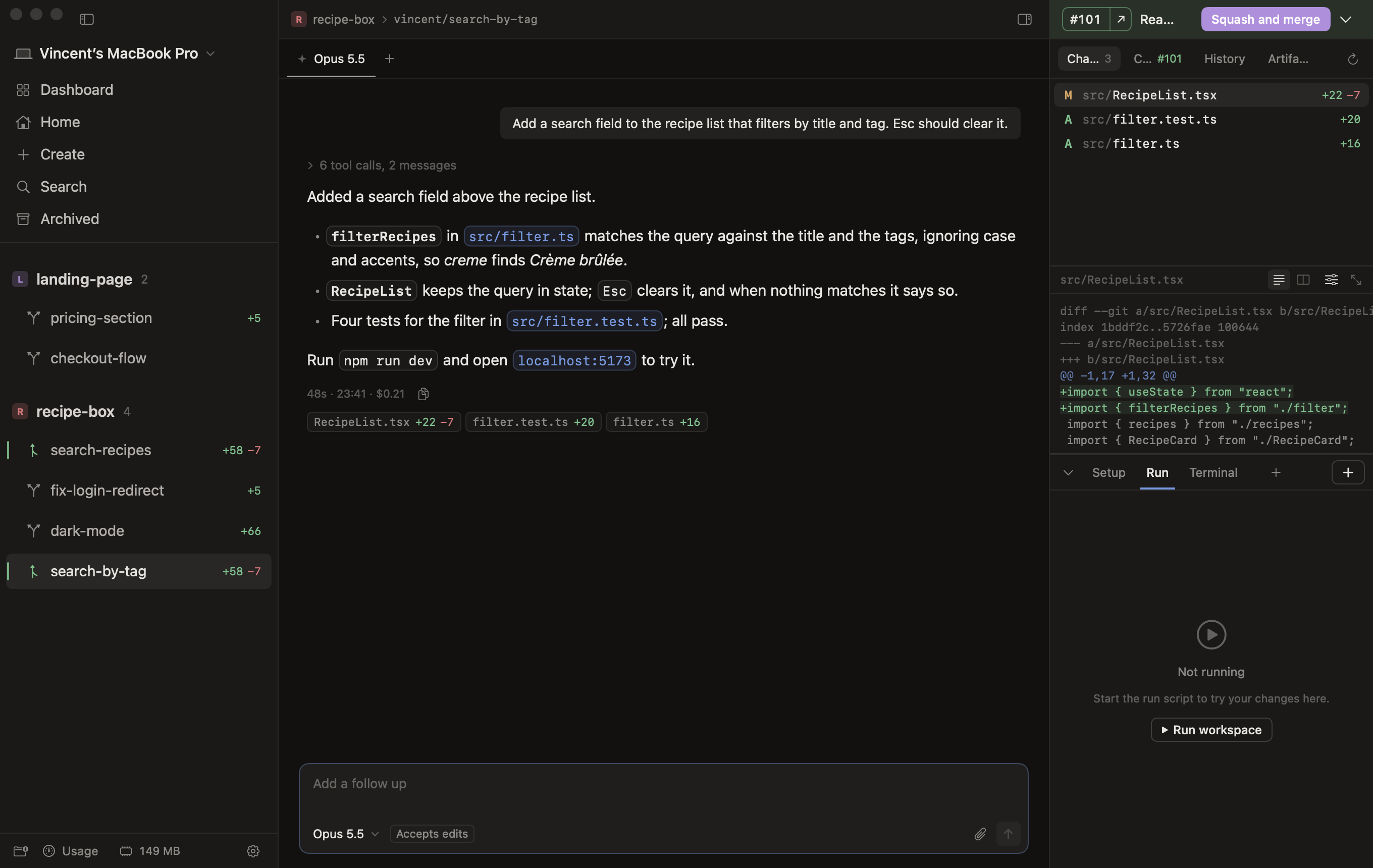
Press Create PR (⇧⌘P) at the top right, once you're happy with the changes. The arrow next to it has Create draft PR, and Create PR manually, which only pushes the branch and opens GitHub so you can write the pull request yourself.
The agent does the rest. Create PR is an instruction to the agent in the workspace: it commits what isn't committed yet, pushes the branch and opens the pull request with
gh pr create, with a title and description written from the work. The instruction shows in the chat as a chip, Create PR.md; hover it to read it. For an issue, the description closes the issue (Closes #42).The pull request appears in the bar above the right panel: its number (
#101 ↗opens it on GitHub to review), what it needs, and Merge.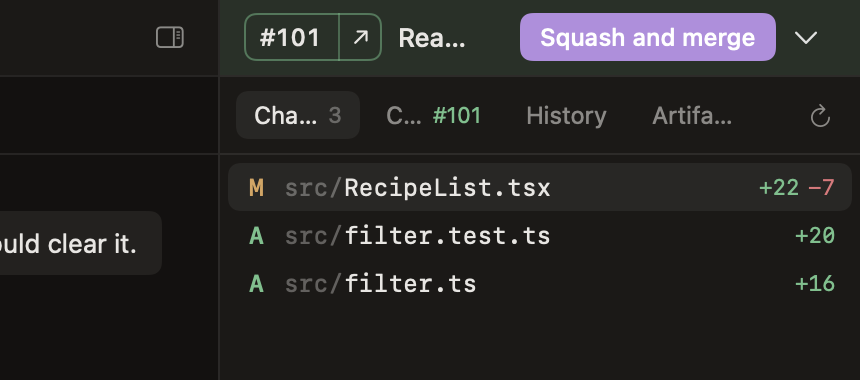
Follow the checks. The bar tells you where the pull request stands: PR review required, Checks running, Merge conflicts, Ready to merge. The Checks tab next to Changes shows the title and description as on GitHub, every check, conflicts, the review, and files that aren't committed yet.
Merge. Squash and merge merges it on GitHub; the arrow next to it has the other ways (merge commit, rebase) and can delete the branch on GitHub. The bar turns purple, with Continue and Archive.
The instruction the agent gets is yours to change per project, under Settings → your project → Git → Create PR instruction: your own commit style, a template for the description, labels to add.
What the colors mean
The bar and the thin stripe on the left of each workspace in the sidebar show the same at a glance:
| Color | Meaning |
|---|---|
| Green | Ready to merge |
| Orange | Waiting; pulsing while checks run |
| Red | Failing checks, conflicts or changes requested |
| Grey | Draft |
| Purple | Merged |
Keep up with main
When the default branch moves on, the Checks tab says how many commits behind the branch is, under Git status, with Pull. That merges the default branch into the workspace's branch. If it gives conflicts, nothing changes and Compagnion names the files, so the agent can sort them out.
After the merge
- Archive puts the workspace away: sessions stop, the worktree goes, the branch and the history stay. See archive and restore.
- Continue keeps going in the same workspace on a new branch from the latest default branch, for a follow-up change.
A branch the agent merged itself, without a pull request, counts as merged too: the bar says Merged into main (locally), with the same two buttons.